AI Chief of Staff with Claude
Build an AI Chief of Staff in Claude that prepares an operating brief from your company context.
Step 1. Connect your company sources
Connect your company sources to a Pensieve context. If you have not done this yet, follow the Overview. Already connected? Move to step 2.
Step 2. Set up Claude
Follow the Claude setup guide to install the Pensieve plugin and sign in. The plugin includes the Chief of Staff skill. If you already have the plugin connected, start a new conversation in Claude and confirm it is using the right context.
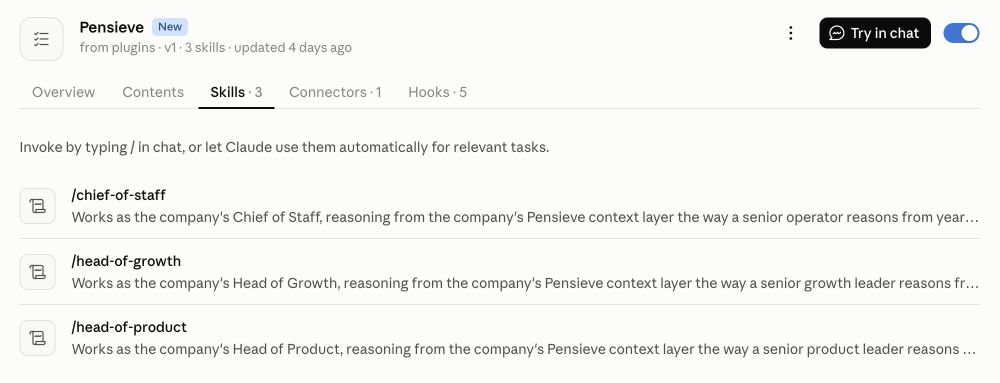
In Claude, open Customize → Plugins → Pensieve → Skills.
Step 3. Run your first review
Ask Claude:
Run the chief-of-staff skill.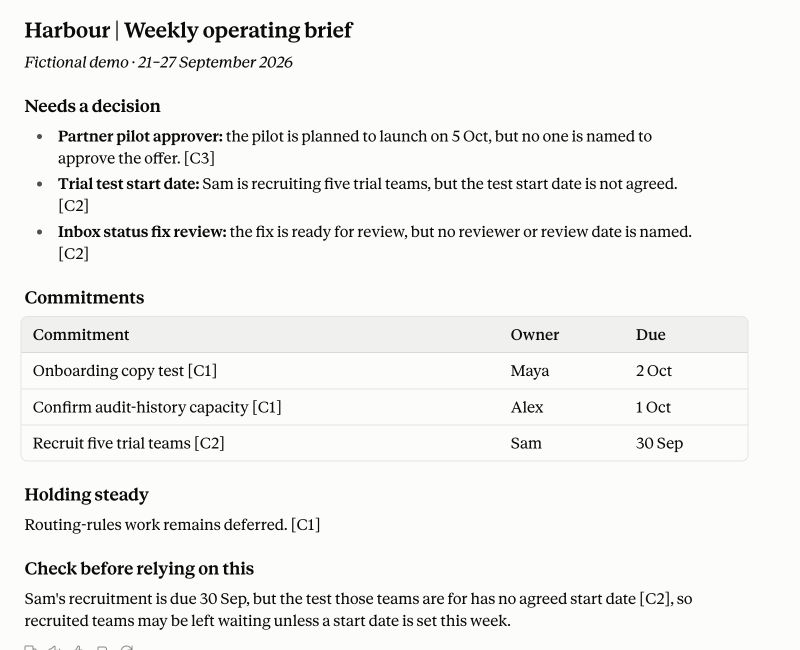
Illustrative Claude response using supplied fictional Harbour notes. The source labels refer to those notes, not live Pensieve citations.
Step 4. Check the evidence and follow up
Check what changed, which decisions need attention, and the owners and dates attached to commitments. Open a citation for one commitment and compare it with the source. Missing figures or unclear ownership should stay explicit rather than becoming invented facts.
Correct any missing or outdated context before using the result. Then ask a follow-up:
Which commitments need attention before our next leadership meeting? Separate confirmed deadlines from anything we still need to clarify.Step 5. Make it work for your team
This chat is the simplest starting point. You can have the skill run regularly, put its output where your team works and pass work to other agents.
Run it on a schedule. In Claude, open Scheduled → New task → Set up manually. Name the task and paste this into Instructions, replacing the context name and database URL:
Run the chief-of-staff skill using [your company context] in Pensieve.

Review changes since the previous run. Update [Notion database URL] with decisions, commitments, owners and due dates. Keep missing owners or dates explicit and update existing items rather than duplicating them. Flag items that need attention.Choose a Frequency, such as weekly, and a time. Give Claude access to the Notion database through its tools, review the task's Permissions, then save. See Claude's scheduling guide for the available options.
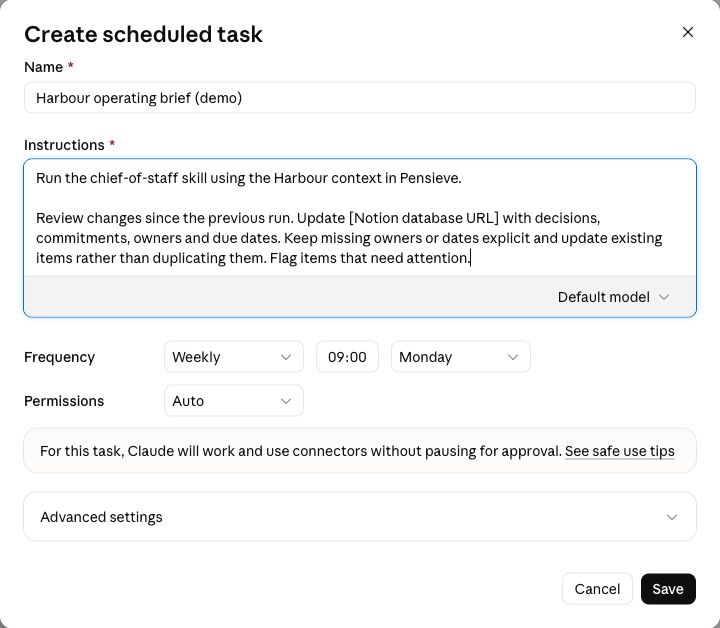
Example setup for fictional Harbour. This draft was not saved or run.
Connect it to other agents. For example, review the commitments in Notion and mark those needing preparation as ready. A configured automation can pass them to another agent to draft a decision brief or project plan. Have it link the draft back to the item for review, so the next operating brief can pick up the latest status.
- Run Chief of Staff
- Commitments in Notion
- Agent prepares a follow-up
- Brief or plan for review
The schedule runs the skill again with the latest context and board status. Pensieve provides the company context; you configure the Notion access and agent handoff separately.
Make the role your own. You can change the destination and requested output in the task instructions. To change how the role works, create your own skill or adapt a copy of the Chief of Staff skill.
Read how role skills work or how to save corrections to your context.
Up next
Chief of Staff skill file