Share knowledge between agents
Save your team's conversations so another agent can pick up the decisions and reasoning behind the work.
Try the same workflow with your own work. This walkthrough saves a new conversation from Codex CLI on macOS, then shows how a teammate or another connected agent can find the reasoning. Claude Code on macOS also supports saving conversations.
Step 1. Connect the supported plugin
If you are new to Pensieve, follow the Overview to create your company context. Install the Pensieve plugin from GitHub, including its local hooks, using the Using Codex? instructions in Setup & clients. Sign in and choose the company context you want to work in.
This guide requires the local plugin and Python 3.9 or later. An MCP connection or public plugin listing alone does not establish that conversation saving is available. The verified capture routes are local macOS Codex CLI and Claude Code; ordinary ChatGPT and Claude chats are not captured by connecting MCP.
Step 2. Approve conversation sharing
The plugin connects when you authenticate the Pensieve MCP server in Codex. It then opens Authorise transcript saving in your browser. Check the context and choose Approve if you want to share future conversations with its members.
The choice belongs to you, this context and this client family. Claude has a separate choice. Previous conversations are not imported. A new computer connects automatically and keeps your saved choice.
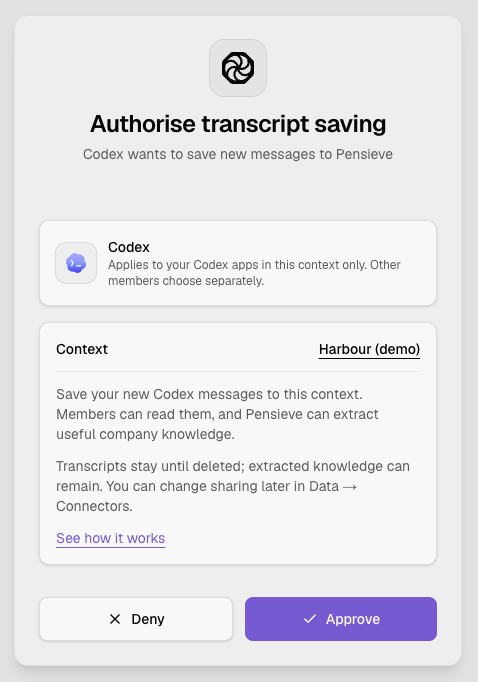
Pensieve’s approval screen, rendered locally with fictional demo data.
Step 3. Do a piece of work
Start with a small task whose reasoning will be useful later. For example:
Use our Pensieve context to compare two ways to improve onboarding. Recommend one, explain the trade-off, and cite the company evidence. Reply here without changing anything.Continue the discussion and clarify your decision. New messages are saved to the first context the conversation reads or uses. If you belong to a single context, that is it from the first briefing; if you belong to several, nothing is saved until the conversation opens one. If the conversation later uses a second context or account, saving stops for the rest of it; start a new conversation to save again.
Step 4. Find the conversation in Pensieve
Open Data → Sources in that context. Search by title, author or “Codex”, or narrow the modified-date range. Open your saved conversation, select Content, and read the messages in order.
Check that the discussion and its context match the work you just did. A colleague can now read why a decision was made, alongside the company's other sources.
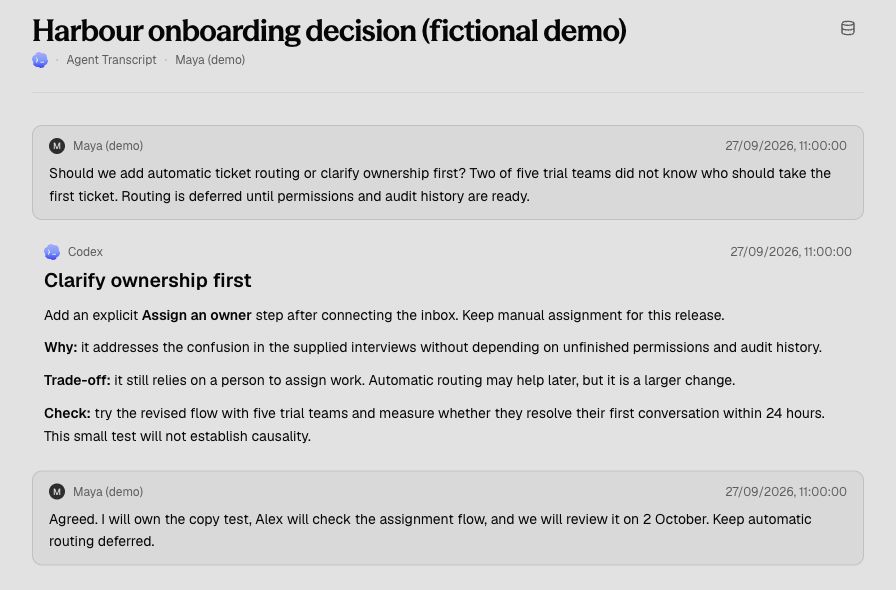
The actual Pensieve reader with a fictional transcript. This example was not captured from a live Codex session.
Step 5. Pick up the work with another agent
Connect Claude Code or another agent to the same Pensieve context using Setup & clients. Your teammate must be a member of that context to access its shared conversations.
Ask the agent to look for the discussion before starting a related task:
Search our saved conversations in Pensieve for the onboarding discussion. Read the relevant conversation, explain what we decided and why, and use that reasoning to propose the next step. Link back to the conversation.Check that it finds your saved discussion and carries the reasoning into its proposal. This is how one session can build on another without you copying the whole chat across.
Step 6. Control what you share
Open Data → Connectors, configure the Codex transcript card, change Share my conversations, and select Save. Turning sharing off offers a choice to keep or delete your saved transcripts from that client family in this context. You can also delete one transcript from its reader.
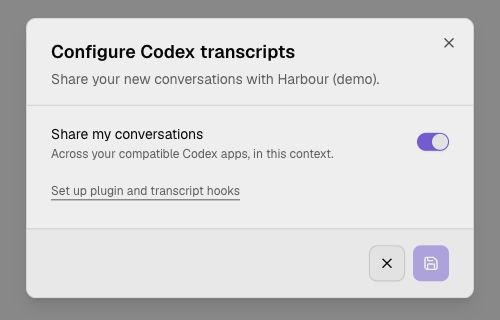
Sharing settings for the fictional Harbour context.
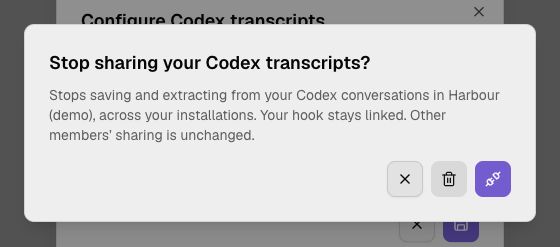
When turning sharing off, choose whether to keep or delete existing transcripts. Both screens use local demo data.
Saved transcripts remain until deleted. Other members' sharing choices and other contexts are unaffected. If knowledge has separately been extracted from a transcript, deleting the transcript does not remove that knowledge. Saving a conversation does not by itself promise automatic learning or recall by every AI client.
Up next
Plans & billing